Jim Rossman: Are QR codes computer-friendly?
Published in Science & Technology News
I have a friend who calls me occasionally to come help him with various little things having to do with the technology at his house.
This week, one of his requests was to learn more about QR codes and how they work.
QR codes are those square barcodes that exist to help you navigate to various website addresses. You can read the QR code by pointing your phone’s camera at them.
When my iPhone’s camera senses a QR code, it will pull up a small yellow button on the screen and if I touch the button, it’ll launch a browser on my phone and take me to the website.
They’re just glorified bookmarks.
But they’re really only convenient to use if you have a camera to read them, which means using your phone or a tablet.
My friend had been messaged a QR code for a form he wanted to fill out on his computer on the big screen with the full-size keyboard.
He wanted to know how to read a QR code through his laptop.
“Simple,” I said. But once I got the QR code up on the laptop screen, it wasn’t obvious how to proceed.
Software built into the camera software on iPhones and Android phones make quick work of decoding the QR codes. How do you do that on a laptop or desktop computer?
Like any good troubleshooter, when I don’t know how to do something, I search for an answer on the internet.
There were several suggestions involving taking a screenshot of the QR code and uploading it to a decoding website, which works, but it is a lot of steps and more than I wanted to teach my friend.
I ended up with a solution using Google’s Chrome browser with the Google Lens feature.
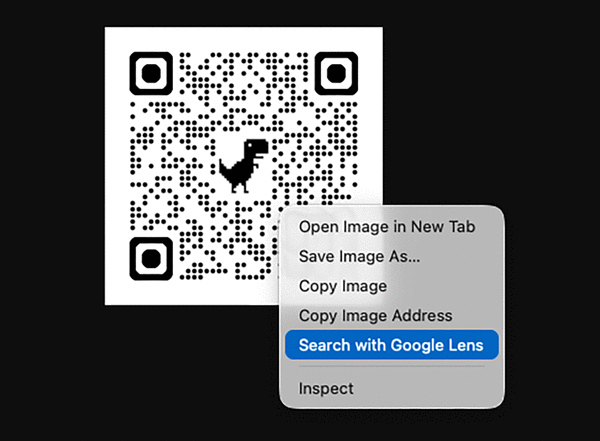
In Chrome, if you can right-click on the QR code and choose Search with Google Lens from the popup menu, the browser should give you a web address you can click on to get to the QR code’s bookmark.
I realize this may not work every time. If the QR code on the web page is part of a larger graphic, you may need to see if you can crop the image down to just the code or right-click and open the QR code image in another tab or window by itself. Google Lens will also let you draw a box and crop an image to search just a small portion. So just draw a box around the QR code and you should get the right address.
I realize there may be better ways to read QR codes from your computer, and this is just the easiest way I found for my friend. If you have a better way to read QR codes from web pages on a computer, please drop me a line and let me know.
©2025 Tribune Content Agency, LLC.






Comments